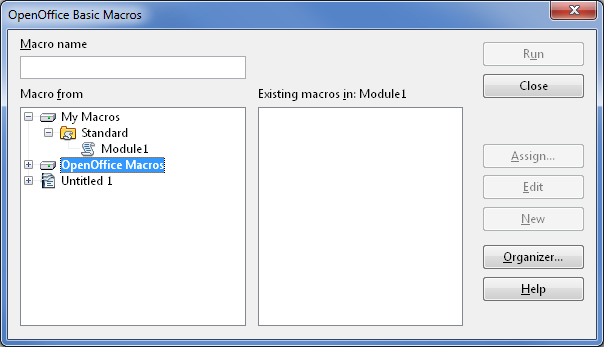
Hey, guess what I did? I converted my Word Macros into OpenOffice, so now you can use them with your favorite free alternative to Microsoft.
Actually, I recommend these macros over the Word ones, as there are various improvements to the coding. They’re not as fast as Word’s (but nothing in OpenOffice is as fast as Word), but I think they work a little better.
One thing to note: a lot of these macros use the OpenOffice’s highlighting function (A.K.A. character back color). For some reason, this doesn’t play well with Word’s highlighting function. So if you open a document in OpenOffice, highlight stuff, then open it in Word, it’s hard to get rid of/clear the highlighting.
How to Install
- Open up OpenOffice Writer or LibreOffice Writer (which I use).
- Go to Tools->Macros->Organize Macros->OpenOffice Basic
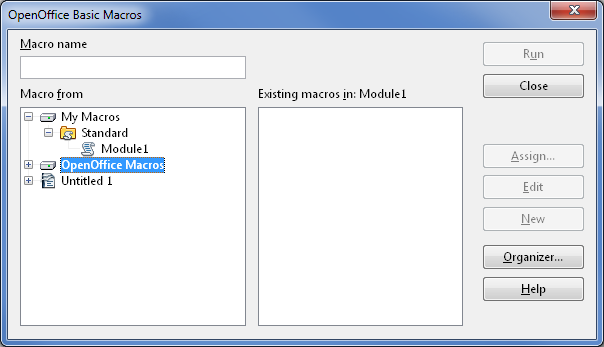
- Expand My Macros->Standard->Module 1
- Click “Edit”
- Copy and Paste the content of standard.bas into the Macro editor. Ctrl+S to save.
- Go back to Tools->Macros->Organize Macros->OpenOffice Basic
- Highlight “My Macros” and click “Organizer”
- Click the “Libraries” tab

- Click “New” to create a new library
- Name it “Private”
- Click “Edit”
- Copy and paste the content of private.bas into the Macro editor. Ctrl+S to save.
And that’s it! Let me know if you find any bugs or issues by emailing me or leaving a comment.


Related Posts

Analyzing the Marvel Cinematic Universe Villains: Aldrich Killian (Iron Man 3)

Update

Trooble with Shawrt Stawries These Dais